 Ap Adjustments With Terms Discount
| Document Version | v1.0 |
|---|---|
| Document Last Updated | 10/7/2025 |
| Software Version Documented | 10.2 |
Overview
This demonstrates Accounts Payable Adjustments with Terms Discount
-
Terms Discount in the totals section of Enter Bills consider Adjustments and Missing Items Adjustments
-
When there is a value in those 2 fields, negative or positive, the terms discount should include that value as well as the SubTotal to calculate the Terms Discount.
-
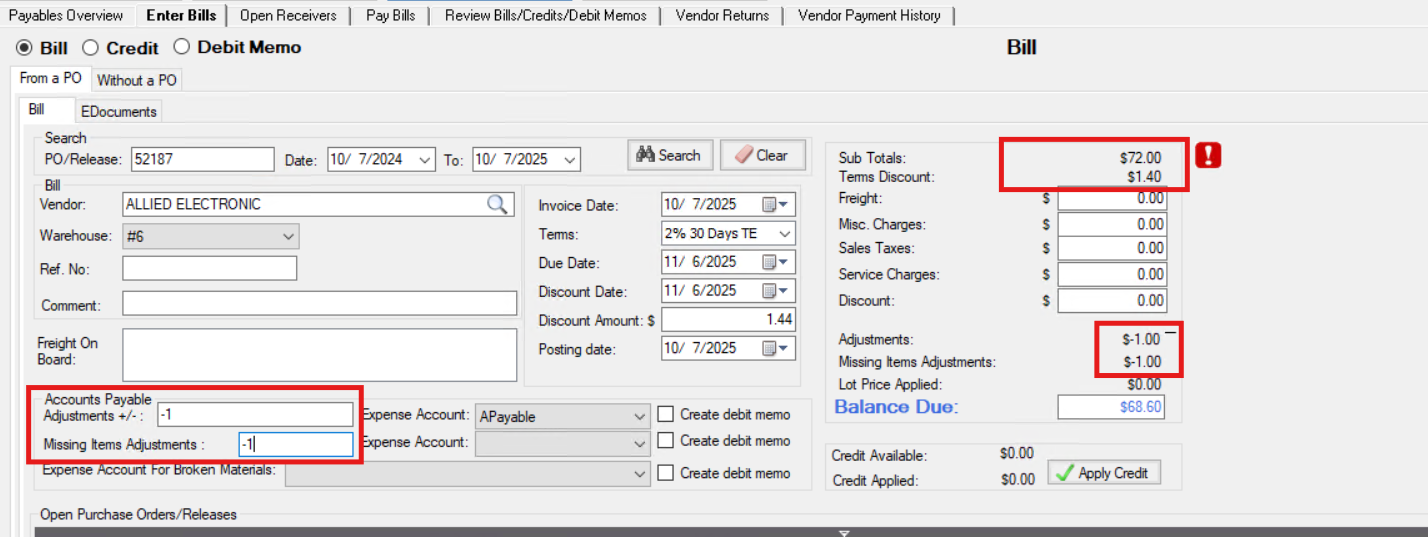
This example shows the terms discount 2% calculating the sub total $70, minus $1 for Adjustments, and minus $1 for Missing Items Adj, with a terms disc of $1.40. Instead of 1.44 for full 72.00
Terms Discount to Consider AP Adjustments in Enter Bills
As a user who enters bills for AP, the terms discount should include adjustments in the calculation so that the discount can be calculated more accurately Given that a PO has been received and/or have received the bill.
Enter Bills
-
Access the Enter Bills screen and find the PO
-
Check off the receivers and the totals section refreshes to show balances
-
If there is a terms discount with a percentage that will grant a discount if paid by the discount date
-
The Terms Discount shows an amount
-
Add a positive number to the Adjustment field
-
The Terms Disc value refreshes (as well as the Adjustments value and Balance Due)
-
Make it a negative amount
-
The same fields refresh to show the new value
-
Add a positive number to the Missing Items Adjustment field
-
The Terms Disc value refreshes (as well as the Adjustments value and Balance Due)
-
Make it a negative amount
-
The same fields refresh to show the new value
-
When ready create the bill
Edit Bills

-
Open the Review Bills/Credits/Debit Memos screen and find the Bill
-
And right click and choose Edit
-
In the Edit Bills screen click Edit to enable the fields
-
There is a terms discount with a percentage that will grant a discount if paid by the discount date
-
The Terms Discount shows an amount
-
Add a positive number to the Adjustment field
-
And the Terms Disc value refreshes (as well as the Adjustments value and Balance Due)
-
Make it a negative amount
-
And the same fields refresh to show the new value
-
Add a positive number to the Missing Items Adjustment field
-
And the Terms Disc value refreshes (as well as the Adjustments value and Balance Due)
-
Make it a negative amount
-
And the same fields refresh to show the new value
-
When ready save the changes
Enter Bills - Lot Project Item
-
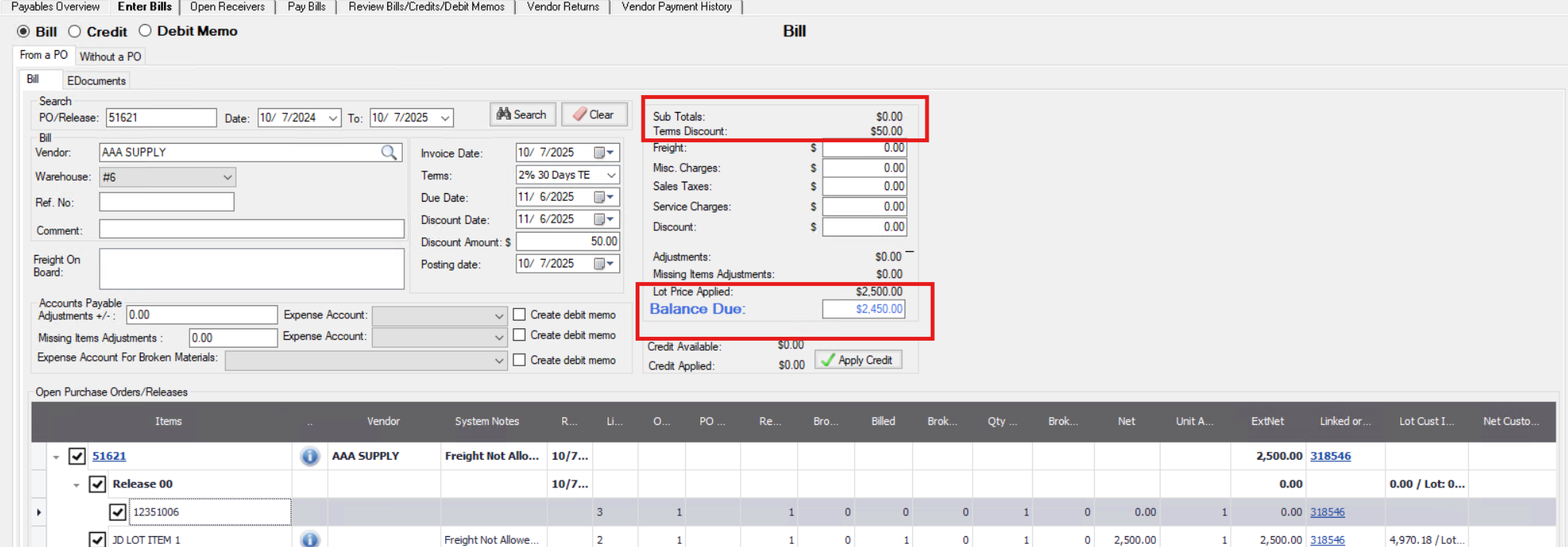
Access the Enter Bills screen and find the PO
-
Check off the receivers and the totals section refreshes to show balances
-
There is a terms discount with a percentage that will grant a discount if paid by the discount date
-
The Lot Price Applied value refreshes
-
The Terms Discount shows an amount
-
Add a positive number to the Adjustment field
-
The Terms Disc value refreshes (as well as the Adjustments value and Balance Due)
-
Make it a negative amount
-
The same fields refresh to show the new value
-
Add a positive number to the Missing Items Adjustment field
-
The Terms Disc value refreshes (as well as the Adjustments value and Balance Due)
-
Make it a negative amount
-
The same fields refresh to show the new value
-
When ready create the bill
Edit Bills - Lot Project Item
-
Open the Review Bills/Credits/Debit Memos screen and find the BillAnd right click and choose Edit
-
In the Edit Bills screen click Edit to enable the fieldsThere is a terms discount with a percentage that will grant a discount if paid by the discount date
-
And there is a value in the Lot Price Applied
-
The Terms Discount shows an amount
-
Add a positive number to the Adjustment field
-
And the Terms Disc value refreshes (as well as the Adjustments value and Balance Due)
-
Make it a negative amount
-
And the same fields refresh to show the new value
-
Add a positive number to the Missing Items Adjustment field
-
And the Terms Disc value refreshes (as well as the Adjustments value and Balance Due)
-
Make it a negative amount
-
And the same fields refresh to show the new value
-
When ready save the changes
Edit Bills - A Bill Created with No Receivers But is Now Linked to Receivers
Given that have a PO that has not been received yet, But have a bill ready to enter
-
Open the Enter Bills screen
-
Enter the PO
-
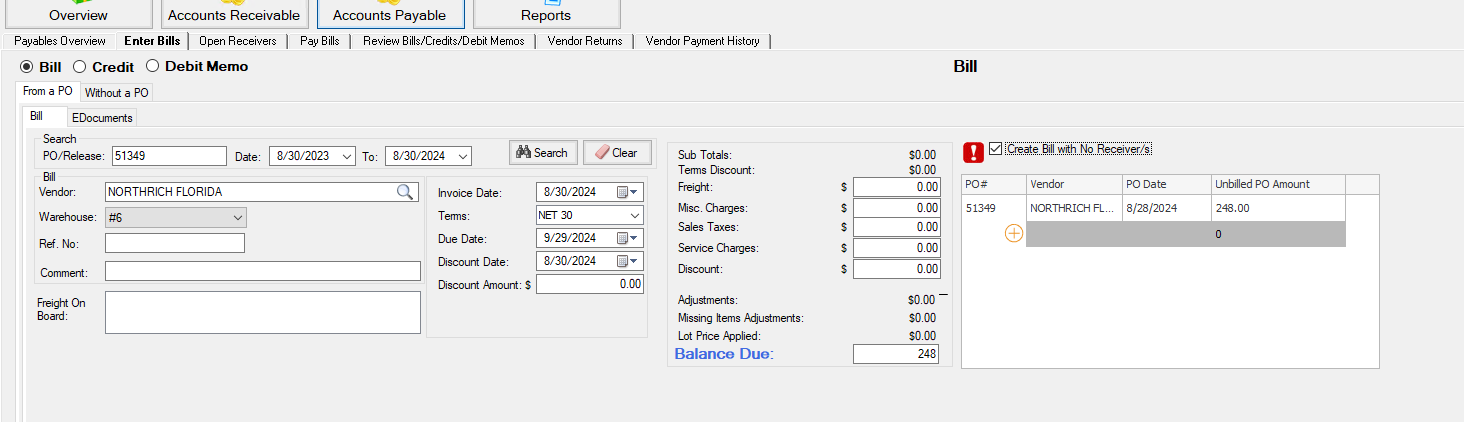
Checkmark the Create Bill with No Recievers box
-
And click Plus and enter the Balance Due and other bill info
-
There is a terms discount with a percentage that will grant a discount if paid by the discount date
-
And click Create Bill
-
Then receive the PO
-
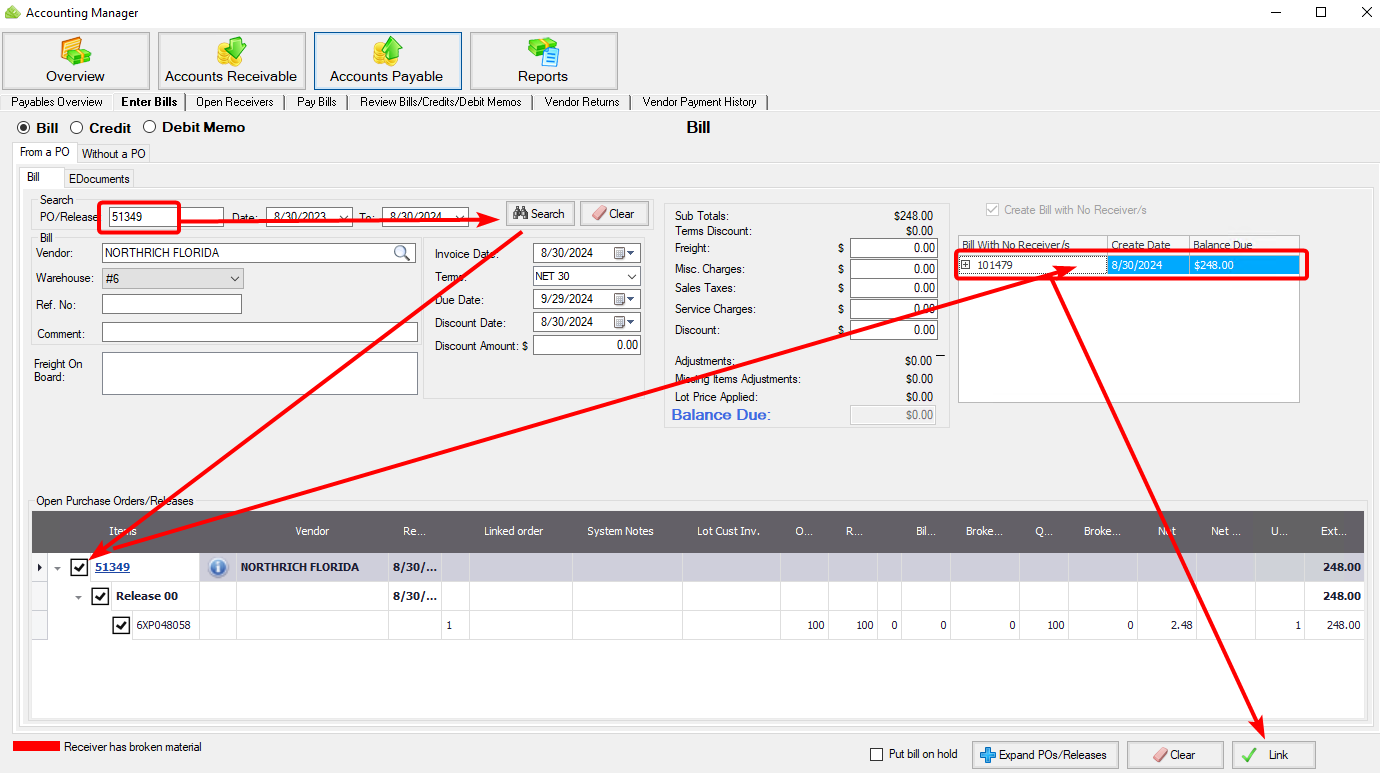
And then back on the Enter Bills screen enter the PO and click search
-
And the receiver appears
-
Then check mark the receiver
-
And the Bill to be linked appears
-
Highlight the bill to be linked
-
And the Link button is enabled
-
Click Link and and then click OK to confirm the bill was linked successfully
-
Open the Review Bills/Credits/Debit Memos screen and find the Bill
-
And right click and choose Edit
-
In the Edit Bills screen click Edit to enable the fields
-
There is a terms discount with a percentage that will grant a discount if paid by the discount date
-
The Terms Discount shows an amount
-
Add a positive number to the Adjustment field
-
And the Terms Disc value refreshes (as well as the Adjustments value and Balance Due)
-
Make it a negative amount

-
And the same fields refresh to show the new value
-
Add a positive number to the Missing Items Adjustment field
-
And the Terms Disc value refreshes (as well as the Adjustments value and Balance Due)
-
Make it a negative amount
-
And the same fields refresh to show the new value
-
When ready save the changes